
Every client, every job, one question away.
You already use Claude or ChatGPT for the words — the XBert MCP puts that same assistant to work on the actual books: your clients' live ledgers, alerts and workflow. And — if you run Xero Practice Manager — the jobs, WIP and capacity that show how your own practice is running. You ask in plain English, it does the digging, and anything that changes the books is flagged for your approval first.
Sign in with your XBert account. No code, no API keys.
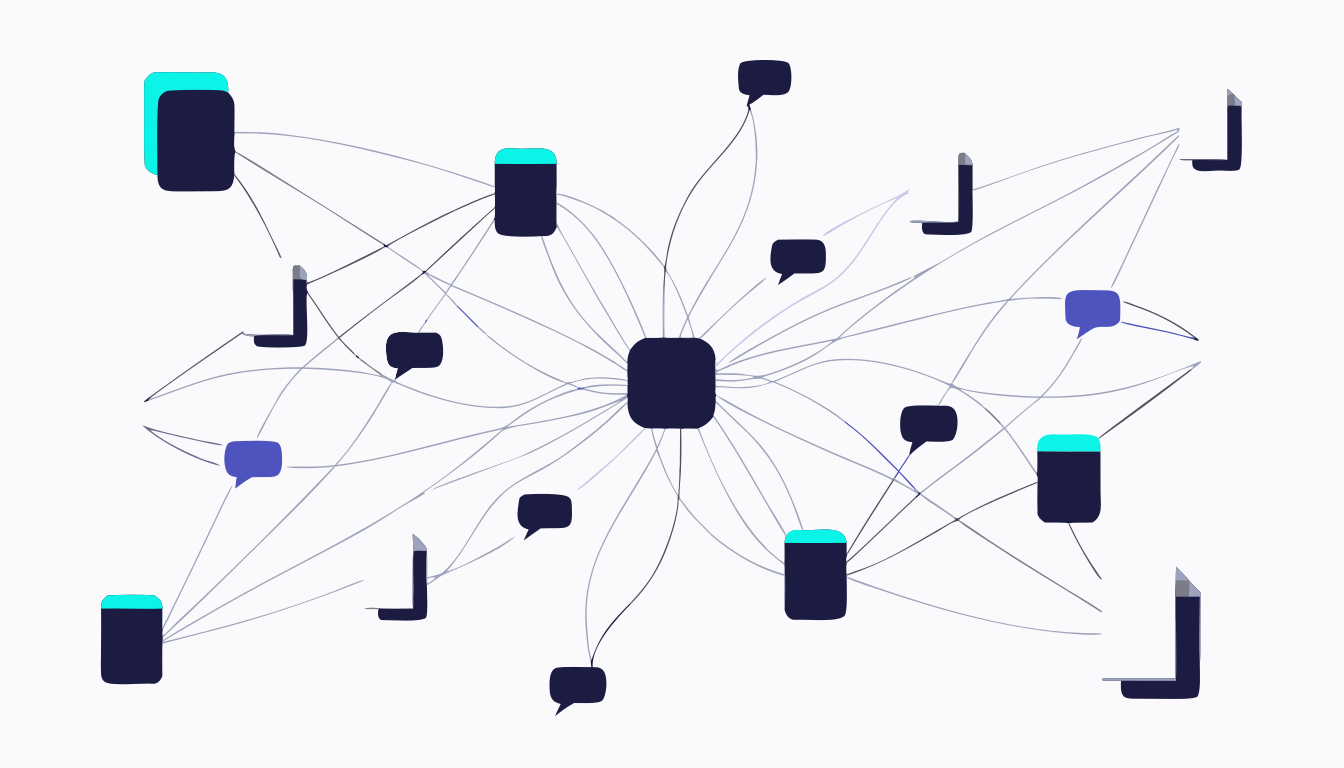

What's an MCP? The two-sentence version.
MCP — the Model Context Protocol — is simply a secure, standard way for Claude, ChatGPT or whichever AI you use to connect to the software your practice already uses and work with it on your behalf. Think of it as the plumbing between your assistant and everything XBert already holds — your clients' books on one side, your practice's own worklists and tasks on the other — so you never see it: you just ask a question and the answer comes back from the live record, not from the assistant's imagination.
One address, one sign-in, and you're talking to your practice.
Connected in three steps.
- 01
Point your assistant at XBert
In your assistant's connector settings — in Claude, Customize → Connectors — add one address: https://mcp-gateway.xbert.io/mcp. That's the whole technical bit on Claude, done. - 02
Sign in to approve
A browser window opens and you sign in with your XBert account. The assistant gets your permissions — no more, no less — and your credentials stay with XBert. - 03
Start asking
Type the question the way you'd ask a colleague. “Who owes us the most?” and “who's over capacity next week?” work better than anything technical ever will.
Prefer screenshots? Follow the step-by-step guide →
Ask it like you'd ask your best senior.
Start with the work, not the technology. Every practice has the same Tuesday-morning questions — some about a client's books, some about how the practice itself is tracking. Here's what they sound like once your assistant is connected.
Every answer comes from live XBert data, under your own login — not the assistant's memory. Data questions need the client on an AI-enabled plan.
See everything it can doYou stay the reviewer.
Think of it as giving a very capable new team member a supervised login. Letting an assistant near the books is a big step — here is exactly where the lines are. Every write is validated and checked for duplicates first, and each one is marked as a change to confirm, so your assistant stops and asks before it submits. That approval prompt belongs to the assistant rather than to XBert — what XBert guarantees is your permissions, the validation and an audit-log entry on every action.
| What the assistant can do | What it can never do |
|---|---|
| See the clients and data your XBert role allows | See any client or data outside your role |
| Read numbers, lists and records when you ask | Learn your XBert password — you sign in with XBert itself |
| Draft changes for your approval, with an audit trail on every action | Act outside your XBert permissions, or make a change that isn't written to the audit log |
| Work only while connected | Keep any access once you remove the connector in your assistant's settings |
Your clients' books, and the practice behind them.
Money in, money out
Invoices, quotes and receivables. Bills, purchase orders and payables. Bank activity and cash flow — totals first, exact records when you want them.
The firm's own numbers
Jobs, timesheets, WIP and recoverability. WIP comes through as time — hours, not dollars. Team capacity against the time actually worked, so you can see who's stretched and who has room. From Xero Practice Manager, if that's where your practice runs.
The books and the story
P&L, balance sheet, journals and budget vs actual, plus tax and activity statement figures (BAS and IAS in Australia). Pay runs, payslips, leave and retirement contributions (super in Australia). And every XBert alert, explained with its fix.
The doing
Worklists, tasks and schedules across the whole portfolio. Client notes and conversations. Write-back to the ledger with validation, duplicate checks and your sign-off.
These firms are talking about XBert itself. The MCP is the same work, in the chat window.
“XBert is like having that ultra efficient staff member on board”
“Like an additional team member checking out our work! Love how it picks up things I wouldn't have thought to look for.”
“I couldn't reach the level of efficiency or the number of clients I service without it.”
From xbert.io customer stories. These are about the XBert platform, not the MCP.
Questions people actually ask.
MCP stands for Model Context Protocol — a standard, secure way for an AI assistant like Claude or ChatGPT to connect to software your practice already uses and work with it on your behalf. The XBert MCP connects your assistant to XBert: live client ledger data, alerts, workflow and practice management. You ask in plain English; the assistant uses XBert's tools to answer, and to draft work for your review.
No. Setup is paste-one-address-and-sign-in, and from then on you type questions the way you'd ask a colleague. There's no code, no API keys and no syntax to learn.
Claude on the web and Claude Desktop (via Customize → Connectors), Claude Code, and any other assistant that supports MCP connectors. ChatGPT works too, with more setting up — see Get started for what your plan and your workspace admin need to allow.
You sign in with your XBert account using OAuth, so your credentials stay with XBert and the assistant inherits your XBert role — it can only see what you can see. Write actions are marked for your assistant to confirm, and every action is written to the XBert audit log. You can disconnect the assistant at any time.
Not without it being put to you first. Write actions — creating a bill, recording a payment, updating a contact — are validated, checked for duplicates and marked as changes to confirm, which is what makes Claude and other MCP clients stop and ask you before submitting. The approval step runs in your assistant; the permission check, the validation and the audit-log entry are XBert's.
Two things decide what your assistant can reach: your XBert role, and the client's plan. Role is the one most people think of — if you can't see a client in XBert, your assistant can't either. The second is the plan: the data and reporting tools only run for clients on an AI-enabled plan, so a client on another plan will answer for tasks, templates and notes, but not for its books. That isn't a fault when it happens; it's the plan.
No. You connect with your existing XBert login, and your existing XBert role and permissions carry over — there's nothing new to create. If you're not on XBert yet, start at xbert.io.

Your assistant is ready when you are.
One address, one sign-in, and the whole practice is a question away.
https://mcp-gateway.xbert.io/mcp